THE PHONE Controls & Inputs
Device-ready input advice for lobbies, answering prompts, and challenge movement.
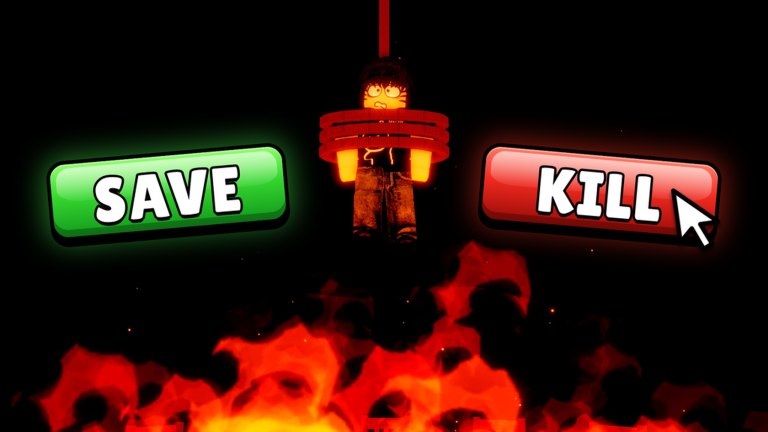
Clean controls are the difference between a cinematic answer and a wipe caused by the Roblox menu opening instead of the interact prompt. THE PHONE by Zynapse Studio asks you to move socially in the lobby, commit to the ringing phone, then execute precise movement or stillness during twisted challenges—with up to eighteen players sharing space. This page maps practical input habits across desktop, mobile, and controller so your fingers never become the horror.
Pair this with Getting Started for context and How to Survive Calls for when to use each action.
Core actions you must never fumble
| Action | Why it matters in THE PHONE |
|---|---|
| Move / sprint | Reposition without body-blocking the phone or teammates |
| Camera look | Track the device, exits, and player clusters |
| Interact / use | Answer the phone and complete challenge objects |
| Jump / crouch (if available) | Traversal or profile changes some twists may demand |
| Chat / emote | Callouts and social signals—use carefully mid-challenge |
| Push-to-talk / mute | Keep voice useful when eighteen mics collide |
Exact keybinds follow standard Roblox defaults unless you rebound them in settings. Consistency beats exotic binds during Hellfire Event chaos.
Desktop (keyboard + mouse)
Use WASD movement with mouse look. Keep E (or your Interact bind) reachable without stretching—many players fail answers because they remapped Interact to a distant key and forgot. Hover the phone early so the prompt appears the instant you commit.
Avoid leaving the mouse cursor unlocked in a way that sends clicks into the Roblox escape menu. During rings, do not open Player List unless you are assigning roles between calls. If you use multiple monitors, keep THE PHONE on your primary aiming display; glancing at guides mid-challenge is how audio cues die. Bookmark Survive Calls for lobby reading instead.
Mobile touch
Thumb placement is everything. Park movement on the left stick zone and keep the right side free for camera flicks toward the phone. Enable any on-screen Interact button visibility options Roblox provides for the device. When the lobby is packed, pinch-zoom habits from other games can fight you—practice a simple “orient camera, walk, tap interact” drill before Hellfire peak hours.
Type callouts with the chat bar only between rings. Mid-challenge typing on mobile almost always means you are standing still in the wrong place. If you cannot use voice, pre-agree text macros with friends (“HIDE”, “STOP”, “ON PHONE”) so one tap or short string suffices. More role ideas sit on Teamwork Tips.
Controller
Confirm Interact is not buried behind holds that open the Roblox system menu. Practice approaching the phone and answering in an empty lobby moment. Stick sensitivity should allow a quick snap to the device without overshooting into the ceiling—horror lighting already hides silhouettes.
Controllers shine for comfortable long sessions but can lose to keyboard chat speed. Pair with a headset mic so you are not the silent tank who never warns allies.
Accessibility and comfort
- Lower motion discomfort by easing camera shake options if Roblox or the experience exposes them.
- Use headphones with a known volume so rings startle without hurting.
- Colorblind players should rely on audio and teammate callouts more than hue-coded cues when challenges get stylistic during Hellfire.
- Take hand breaks; tendon pain makes Interact misses more likely than any monster does.
Settings to review every patch
After updates—especially seasonal launches covered on Hellfire Launch—re-check:
- Interact key still bound.
- Graphics level high enough to read prompts but stable on your hardware.
- Voice chat permissions allowed if you shotcall.
- Shift-lock or equivalent preferences match how you aim on desktop.
Performance dips in eighteen-player Hellfire lobbies can delay inputs. Close heavy overlays, and avoid experimental admin command menus that add client load and ban risk.
Input mistakes that cause wipes
- Opening the Roblox menu instead of interacting.
- Emoting on the phone pad and blocking the real answerer.
- Sprinting into the answerer so collision cancels the prompt.
- Rebinding keys mid-event without practice.
- Playing muted on a laptop speaker across the room.
Practice routine (ten minutes)
- Join a quiet lobby or private server.
- Walk circles around the phone while keeping the prompt ready.
- Answer on a countdown with friends (“3-2-1”).
- Sprint, stop, camera snap, interact—repeat until boring.
- Switch to your secondary device (mobile vs desktop) once.
Boring drills make real rings feel slow. That is the goal.
Next reading
- Getting Started
- How to Survive Calls
- Hellfire Event
- Guides Hub
- Claim comfort cosmetics via the Codes Hub only after binds feel solid.
Master inputs first. THE PHONE’s scares hit harder when your hands already know what to do.
Frequently Asked Questions
Quick answers to the most common questions.
What key answers the phone in THE PHONE?
Use your Roblox Interact bind (often E on desktop). Confirm it in settings before serious lobbies, especially after rebinding.
Can I play THE PHONE on mobile?
Yes. Keep movement and camera thumbs clear, practice the on-screen Interact control, and use short text callouts if you lack a mic.
Why does Interact open a menu instead of answering?
Focus or bind conflicts can target the Roblox escape/system UI. Close menus, re-select the phone prompt, and verify your Interact key.
Should I change sensitivity for Hellfire?
Only slightly. You need fast snaps to the phone without overshoot. Test in lobby before peak event hours.
Do scripts change controls?
Injected menus may add their own binds but risk moderation and instability. Learn default controls instead; see the Scripts Hub.